Installing Infinity SDK
This following explanation is designed for new android developers. If you are a senior developer, you can install our Infinity SDK directly from the GitHub and go to the "Commands list" menu item directly.
Hello new android developers!
This guide will not teach you Java, but help you to install the Infinity SDK so you can control the device fully.
List of things you need to have by now:
- Infinity Watch or Infinity IoT box with you (we will use the Infinity watch for the examples here).
- Basic knowledge on how to operate and use Android Studio.
- Basic knowledge on Java programming (or Kotlin).
Lets start!
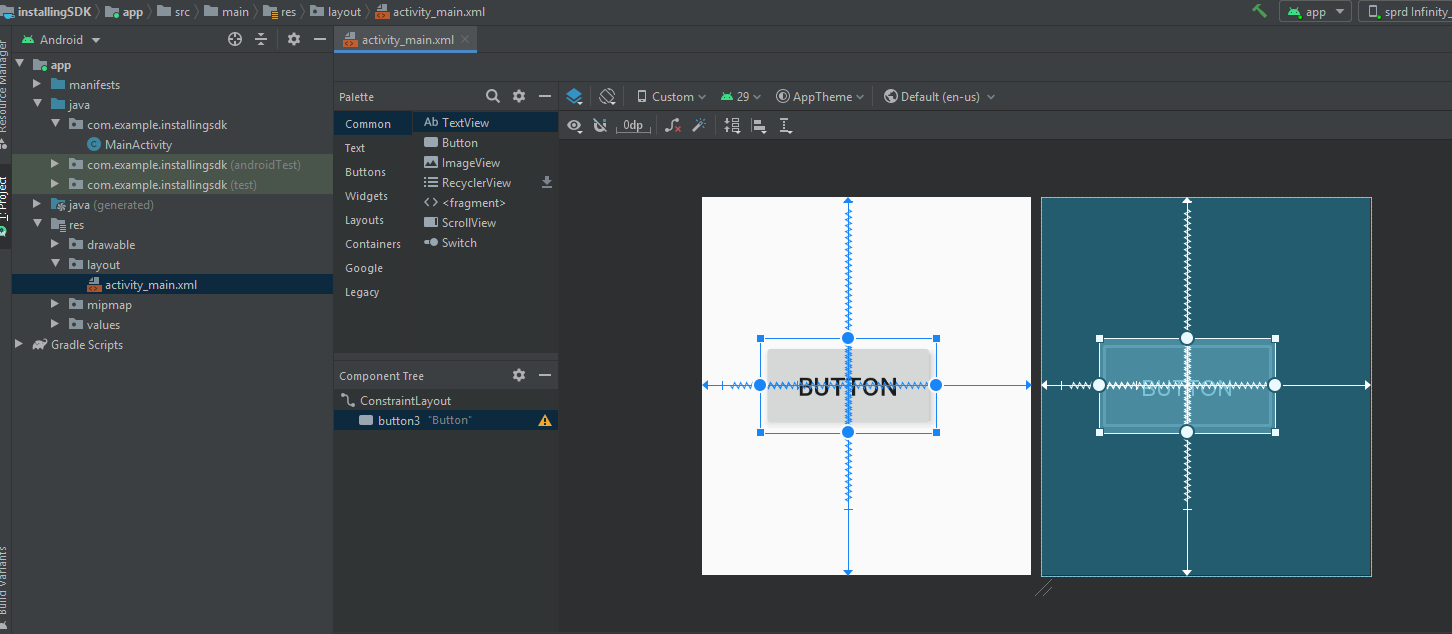
- Open your android studio, a new project or existing one. here is a screenshot of a new project with a button. the layout was reduced to fit the 240x240 resolution of the watch. If you are using the infinity box, you can build your app without Activity:
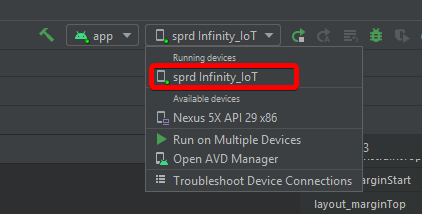
- Make sure the watch is connected to your PC, so you can use it as an emulator. the USB debugging is already activated on the watch/box, just plug the USB and the Android Studio will recognize it:
- Open the project's Gradle, and add the jitpack.io repository:
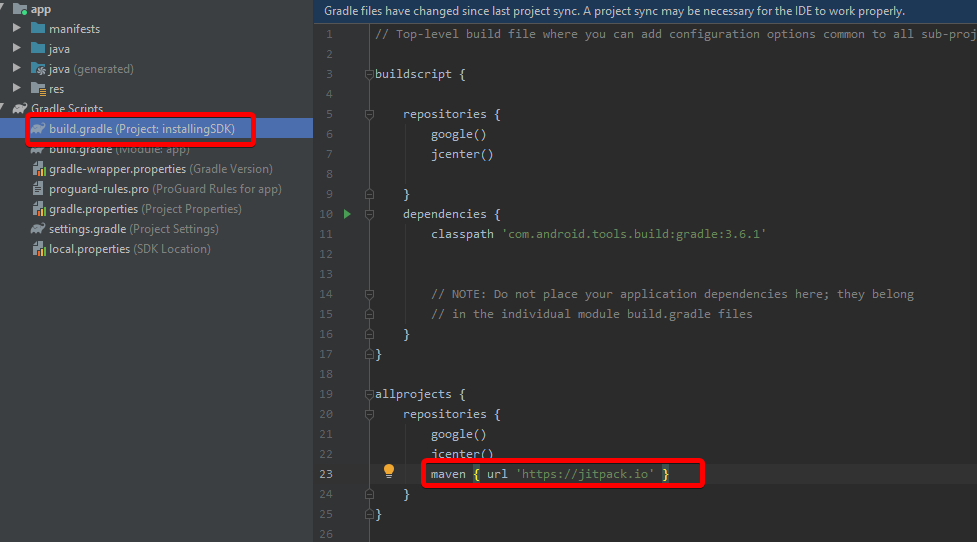
Code:
maven { url 'https://jitpack.io' }
- Open the App's Gradle, and add the Infinity SDK dependency:
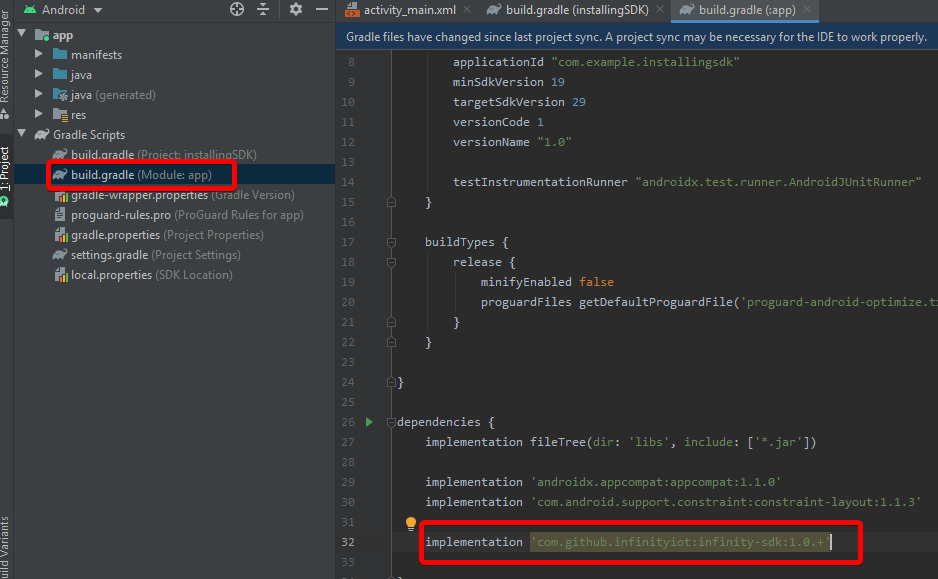
implementation 'com.github.infinityiot:infinity-sdk:1.0.+'
- Sync the gradle (File-> Sync Project with Gradle file)
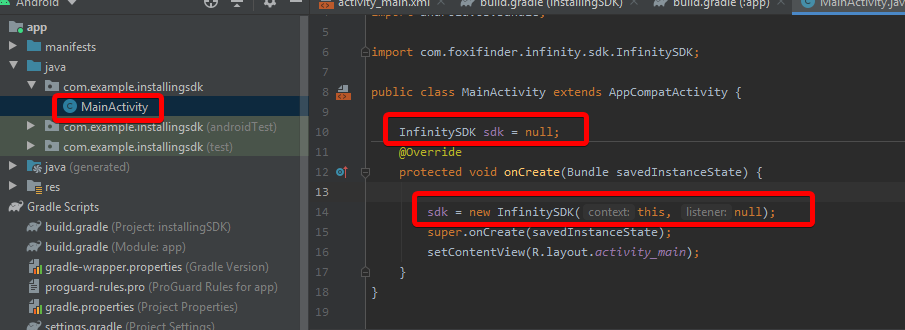
- In your Java code (in the MainActivity class) , add the following code, to start using the Infinity SDK:
InfinitySDK sdk = null;
- Add the following code to the onCreate function
sdk = new InfinitySDK(this, null);
for both items 6 and 7, the code should look like this:
That's it! you are all set!
Usable example:
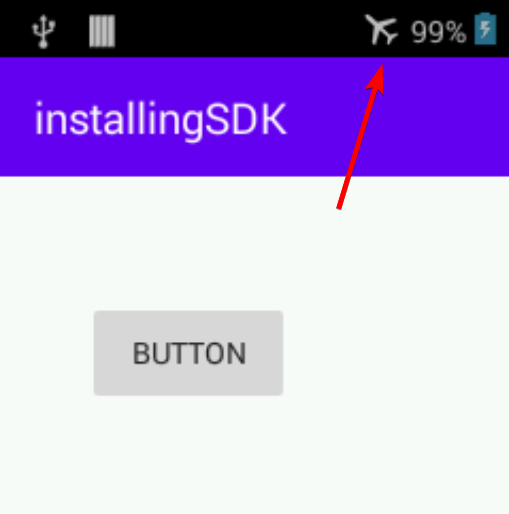
Let's turn on the airplane mode.
If you just want to turn it on without reply back, you can create a button and assign onClick to it (in the following example, we used "onButtonClick")
    public void onButtonClick(View view) {
        sdk.commands.setAirplaneModeEnabled(true, null);
    }
setAirplaneModeEnabled: Turn Airplane mode on or off.
- Parameter value true to turn the airplane mode on, false to off.
- Paramater callback(cb) null for nothing to return back, or InfinitySDK.CommandCallback object with the result of the operation: succeed or not.
Clicking the button, will turn the airplane mode:
Receiving a reply back (callback)
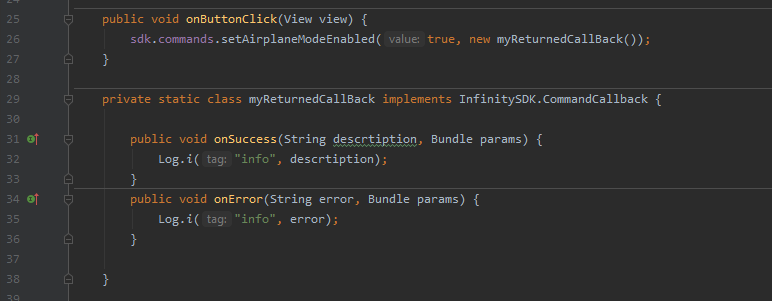
Instead of using "null" you can ask to know if the operation was successful or not. if you decide to use the callback, you must include the onSuccess and onError.
we can use callback instance, like this:
public void onButtonClick(View view) {
        sdk.commands.setAirplaneModeEnabled(true, new myReturnedCallBack());
    }
Now, lets catch the call back:
private static class myReturnedCallBack implements InfinitySDK.CommandCallback {
    }
We have now the onSuccess and onError
onSuccess contains:
- description: A string text description of the operation
- params: A bundle with additional information (if available)
onError contains:
- error: A string text description of the operation
- params: a bundle with additional information (if available)
And the final result, should look like this:
You can download a sample app with everything that is on this page, including the reply back: Download Here
This basic example is the core feature of the Infinity SDK, you can now jump to "Commands List" in the menu, to see how other commands are operated using the same ideas you just saw.
Created with the Personal Edition of HelpNDoc: Easily create iPhone documentation